RenderFender
A downloadable tool
When the first drive gets tight, the next frame still has somewhere to go.
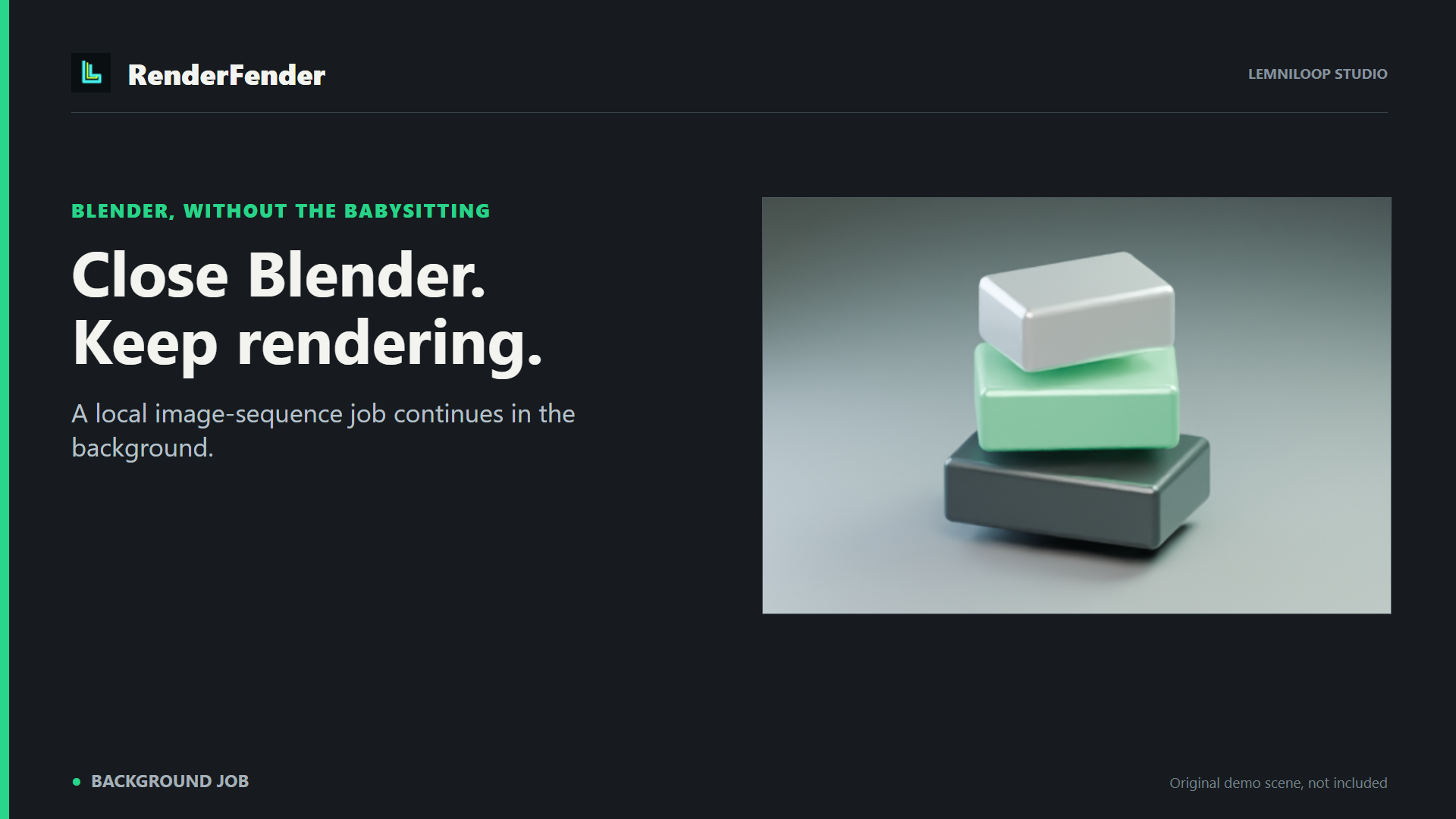
RenderFender starts a local Blender image-sequence render, then runs it in the background while an external monitor shows progress. Close Blender’s window and let the job continue while the computer stays awake. If your primary drive reaches the free-space reserve you set, upcoming frames hand off to a second drive. You can also choose the switch frame yourself.
$9 one-time Founding Beta · Windows x64 · Tested in Blender 5.1.1
One sequence across two drives
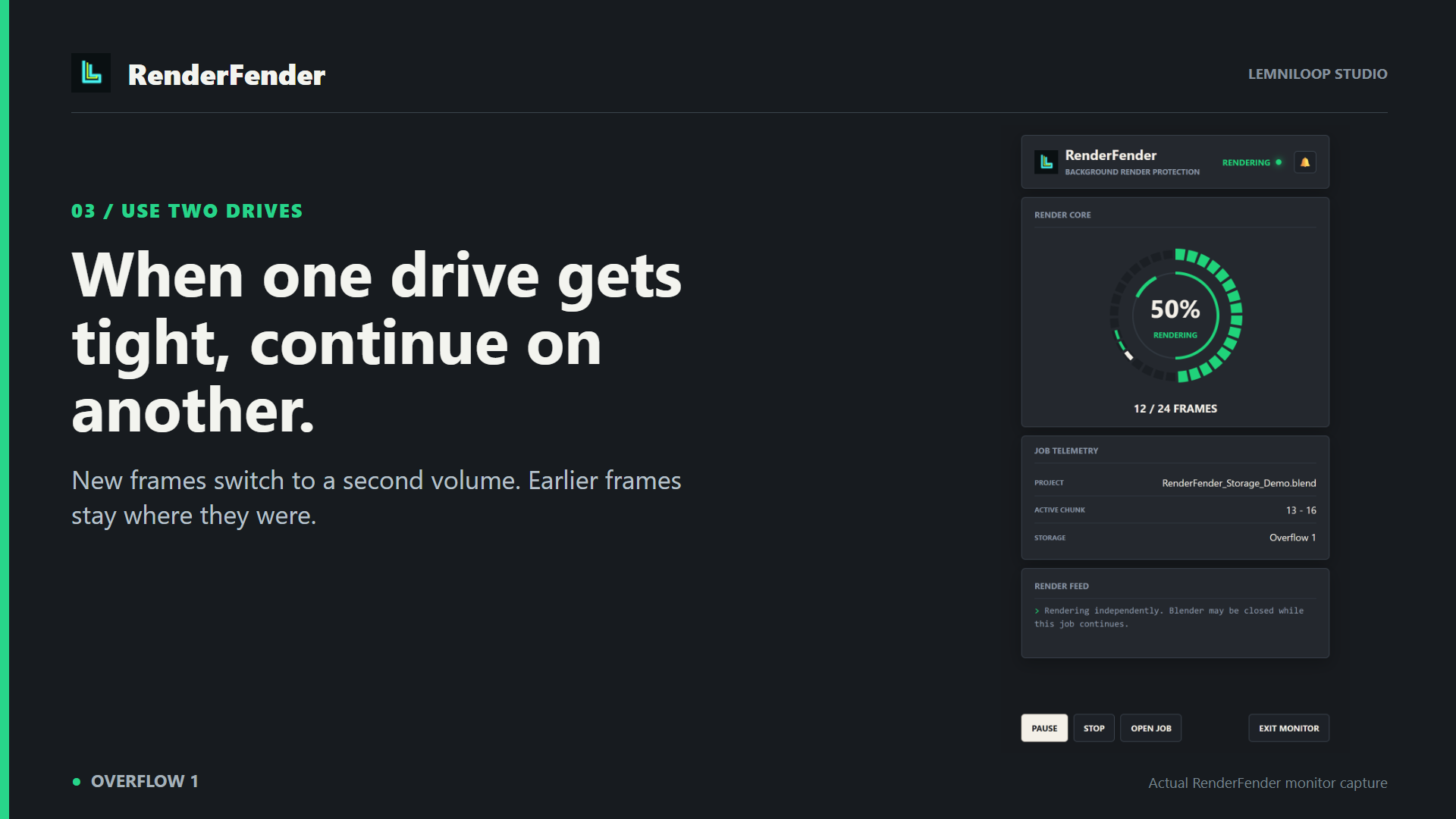
RenderFender checks usable space before each new chunk. When it switches, completed frames remain on the original drive and new frames go to the overflow location. The monitor shows the active location, and the optional MP4 can use the completed image sequence across both drives. This is a one-way handoff for new frames, not a backup, a transfer of old frames, or repeated bouncing between drives. Keep both drives connected until the sequence and MP4 are finished.
See the job. Recover the missing work.
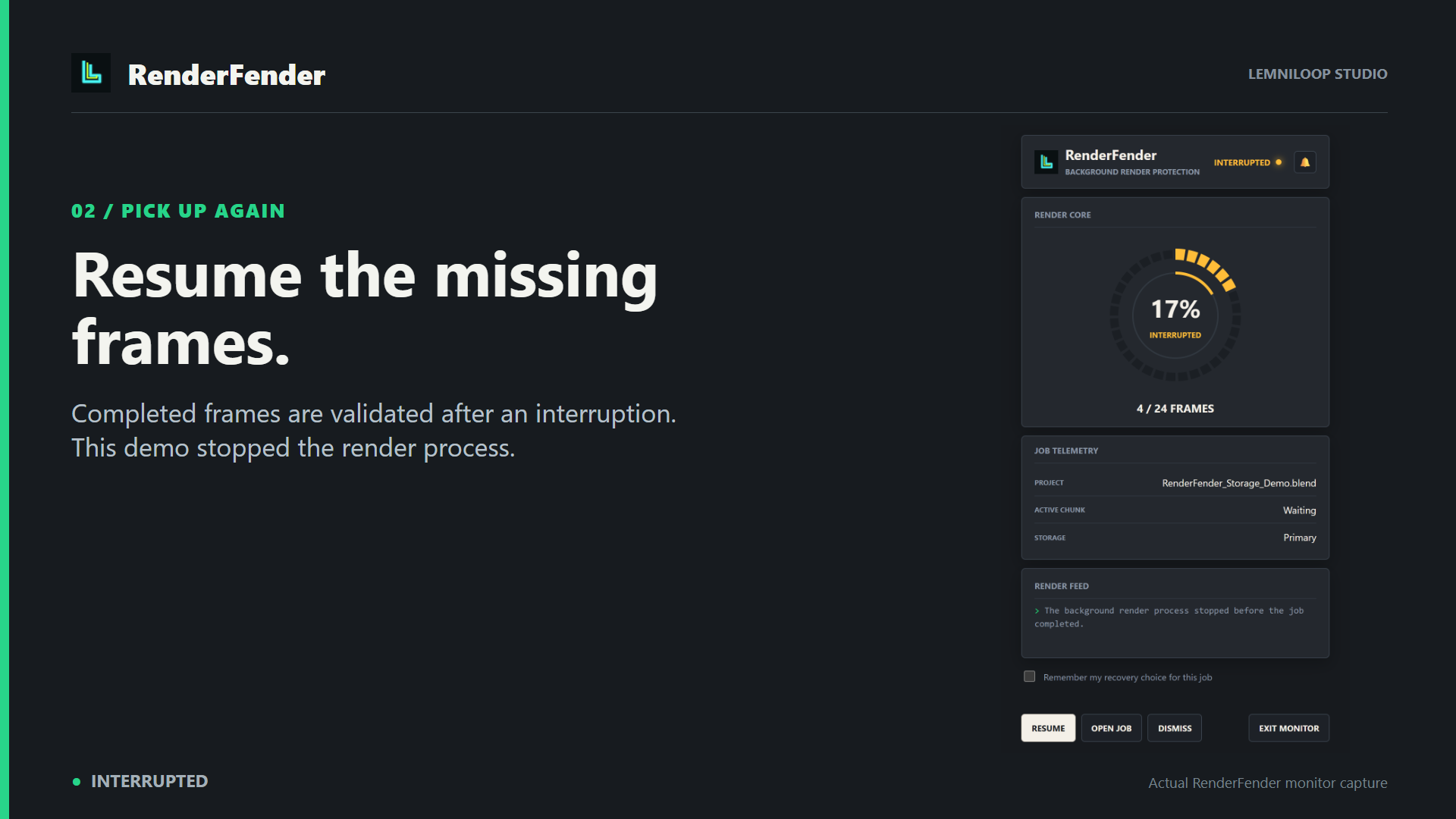
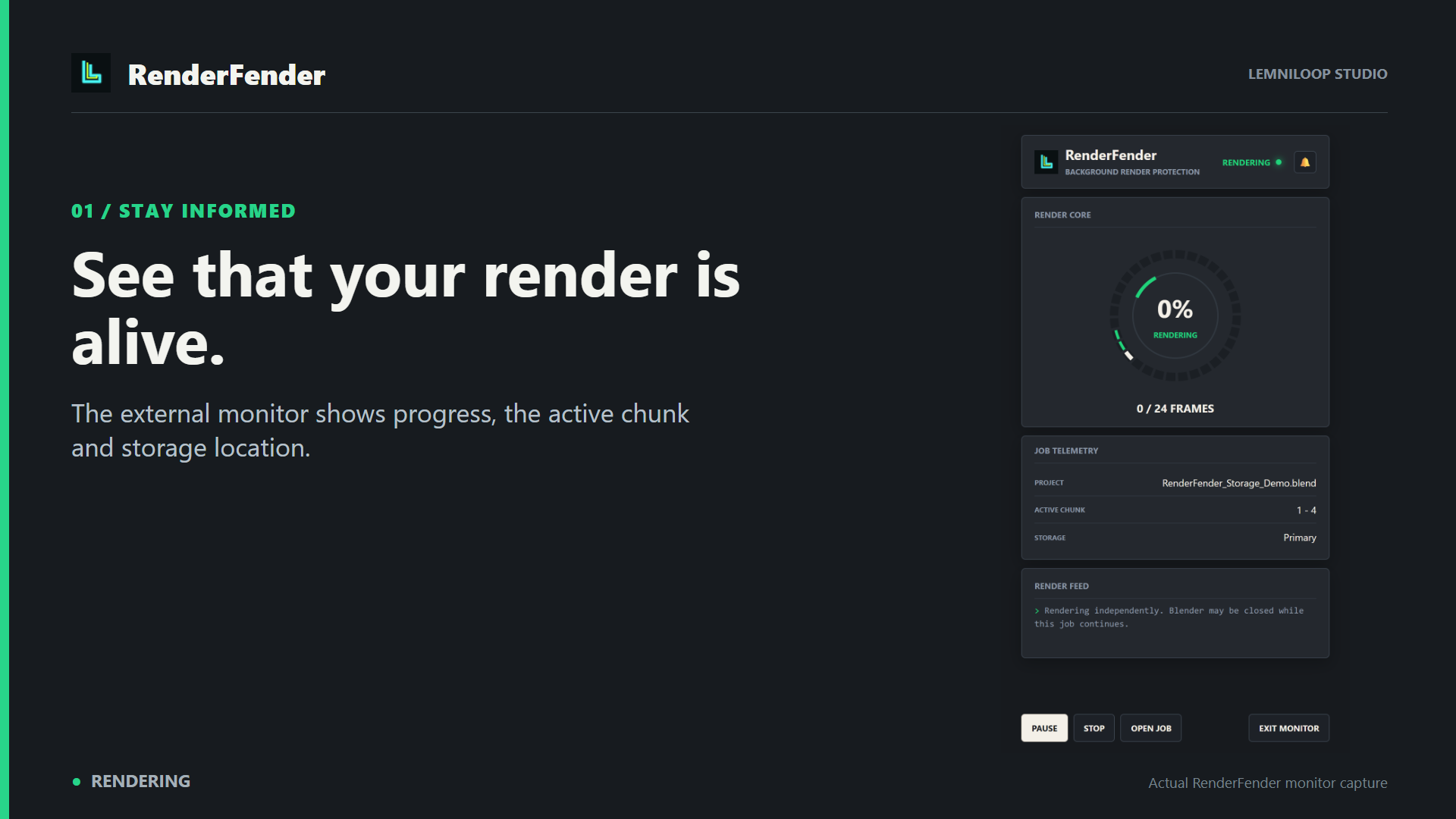
Start Safe Render from Blender’s sidebar or Output Properties. The external Render Monitor shows progress and offers pause and stop controls. If the render process stops, RenderFender checks completed frames and resumes missing work. Its queue runs jobs sequentially; it does not render several jobs in parallel across GPUs.
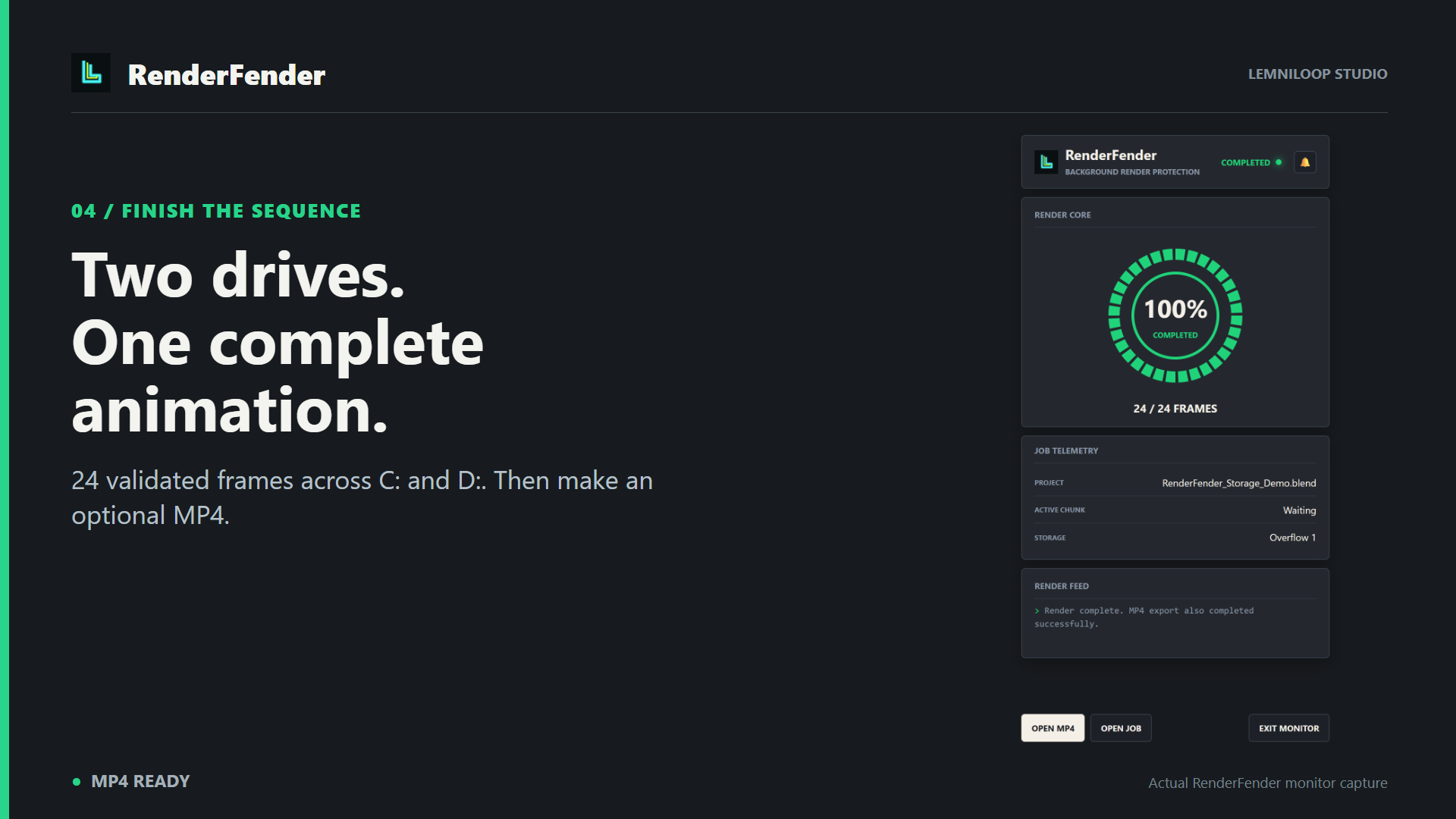
In our 24-frame Blender 5.1.1 Cycles CPU test, frames 1–12 remained on C:, frames 13–24 landed on D:, and the completed sequence made one MP4 across both locations. We stopped the supervisor process, resumed missing work, and verified that completed frames kept their hashes and timestamps. A separate reserve-threshold test sent 3 frames to D: without physically filling C:. These are development tests, not a guarantee for every scene or machine.
What you get
- RenderFender Blender extension ZIP with complete GPL-3.0-or-later source, license and beginner README.
- Background supervisor, validated frame records, job state and logs.
- External Render Monitor with activity signal and recovery controls.
- Automatic capacity-based or chosen-frame handoff to one overflow drive.
- Sequential render queue, preview/2K/4K resolution presets, and optional H.264 MP4 after the full sequence completes.
Compatibility and limits
Tested: Windows x64, Blender 5.1.1, Cycles CPU on the development workstation. The extension declares Blender 4.2+ support, but other Blender versions, render engines, GPU setups and Windows machines have not completed this beta’s validation matrix. Start with a short scene test.
Rendering stops when the computer sleeps or is off. RenderFender cannot prevent driver, hardware, scene or power failures. The protected workflow uses an image sequence, not direct-to-movie output. Storage rollover is unavailable for scenes with active compositor File Output nodes. The second output must be on a different volume.
Install and start
- Keep the downloaded ZIP zipped. In Blender, choose Edit → Preferences → Extensions → Install from Disk, select the ZIP, and enable RenderFender.
- Open 3D View → Sidebar (N) → RenderFender, or Output Properties → RenderFender.
- Save your .blend, choose an image output such as PNG, set a short frame range, and run a test before an overnight job.
RenderFender is made by Lemniloop Studio and is independent of the Blender Foundation. The purchased download remains usable; no subscription or RenderFender account is required. For beta support, email mgmt@lemniloop.com with your RenderFender, Blender and Windows versions and job log. Do not send private scene assets unless asked.
Purchase
In order to download this tool you must purchase it at or above the minimum price of $9 USD. You will get access to the following files:
Leave a comment
Log in with itch.io to leave a comment.